|

Question:
Is there a "Step by Step" direction for how to install and configure MultiCalendar Client/Server Edition? (Suitable for Version 2.0 or above)
Answer: Yes. Here is a step by step direction:
1. First download MultiCalendar C/S Edition from http://www.multicalendar.com/.
Then open the zip file you download using Winzip or Winrar (If you are using Windows XP, the explorer will open the zip file automatically), you can find two exe files in it, one is server20.exe, the other is client20.exe.
2. Double click the server20.exe to install the MultiCalendar Server on the machine which you want it to act as a server (The server can have any of the following system: Windows 98 SE/Windows ME/Windows 2000/Windows NT/Windows XP/Windows 2003). During installation, the installation wizard will ask you to choose the server installation mode. If you are using Windows NT/Windows XP/Windows 2000/Windows 2003, we recommend you choose "Install as a service" (If you install server on Windows 98/ME system, the "Install as a service" option is disabled).
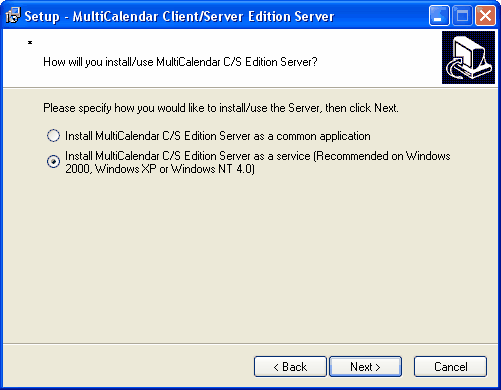
If you finish the installation and set it to run as a service, the server will running as a service and will be started immediately after installation. Or you have to start it from "Start"->"Programs"->"MultiCalendarCS2.0"->"MultiCalendar CS Server".
3. Install the MultiCalendar Client on any computer you wish to act as a client (Windows 98 SE/Windows ME/Windows 2000/Windows NT/Windows XP/Windows 2003), and after installation, click "Start"->"Programs"->"MultiCalendarCS2.0"->"MultiCalendar Client Database Settings tools".
Input the server name (To get the server name, right click "My Computer" on the server machine, then click "Properties" at the popup menu. And a new window with the caption of "System Properties" will appear. Go to "Computer Name" tab and you can get server name from "Computer Description" field) or the IP address of the MultiCalendar Server you just installed at step 2.
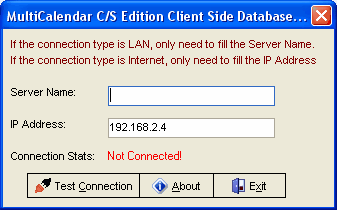
If the MultiCalendar Server is running now, you can click "Test Connection " button in the "Client database config tool" to test whether it can connect to the MultiCalendar Server. If a label with red text "Connected" appears, it shows the connection is set correctly. Click "Close" button of the "MultiCalendar Client Database Settings tool", a dialog will pop up saying whether you want to save the current settings. Click "Yes" button to save it. (If you install MultiCalendar C/S Edition Server on a Windows XP System with Service Pack 2, you need to either turn off windows firewall or add "mccssvr.exe" from MultiCalendar Server installation folder to your firewall's exception list to allow client to connect. )
4.Click "Start"->"Programs"->"MultiCalendarCS2.0"->"MultiCalendarCS Client" at the client side computer. The MultiCalendar CS Client will start up and connect to remote MultiCalendar Server. The default username and password is as following:
Username: testuser
Password: testpass
5. If you want to change the user account/permission, please use "User Management Tools" which is installed together with MultiCalendar Client/Server Edition Client. And detail help information please refer to the "User Management Tools Help" for details.
<Close Window>

|


